Trim Leading Zeros Using the LTRIM String Function
Prior to SQL Server 2022, the `LTRIM` string function removes just space character char(32) from the start of a string. However, starting from SQL Server 2022, the `LTRIM` string function was updated to include the removal of other special characters instead of just the space character char(32) from the start of a string.
Syntax
Syntax for SQL Server prior to SQL Server 2022 (16.x):
LTRIM ( character_expression )
Syntax for SQL Server 2022 (16.x) and later, Azure SQL Managed Instance, Azure SQL Database, Azure Synapse Analytics, and Microsoft Fabric:
Important: You need your database compatibility level set to 160 to use the optional characters argument.
LTRIM ( character_expression , [ characters ] )
Arguments
character_expression
An expression of character or binary data. character_expression can be a constant, variable, or column. character_expression must be of a data type, except text, ntext, and image, that is implicitly convertible to varchar. Otherwise, use CAST to explicitly convert character_expression.
characters
A literal, variable, or function call of any non-LOB character type (nvarchar, varchar, nchar, or char) containing characters that should be removed. nvarchar(max) and varchar(max) types aren't allowed.
Return types
Returns a character expression with a type of string argument where the space character char(32) or other specified characters are removed from the beginning of a character_expression. Returns NULL if input string is NULL.
If you are using SQL Server 2022, you can use the LTRIM string function to trim leading zeros from the start of a string. Simply pass a value of '0' as the second argument of the LTRIM function:
SELECT [Input Type], [Input], LTRIM([Input], '0') AS [Output]
FROM (VALUES ('All Numbers with Leading Zeros', '000123456789'),
             ('All Zeros', '00000000000'),
             ('Number Separated by Dashes', '0000123-456-789'),
             ('MM/dd/yyy Date Format', '09/09/2024'),
             ('All String', 'No Zeros To Trim Here'),
             ('Leading Spaces','  0000888-8888'),
             ('Number with No Leading Zeros', '18005551234'),
             ('Alphanumeric String', '00An-Alphanumeric-String-00'))
AS [SampleStrings] ( [Input Type], [Input] );
| Input Type                     | Input                       | Output                    |
|--------------------------------|-----------------------------|---------------------------|
| All Numbers with Leading Zeros | 000123456789                | 123456789                 |
| All Zeros                      | 00000000000                 |                           |
| Number Separated by Dashes     | 0000123-456-789             | 123-456-789               |
| MM/dd/yyy Date Format          | 09/09/2024                  | 9/09/2024                 |
| All String                     | No Zeros To Trim Here       | No Zeros To Trim Here     |
| Leading Spaces                 |   0000888-8888              |   0000888-8888            |
| Number with No Leading Zeros   | 18005551234                 | 18005551234               |
| Alphanumeric String            | 00An-Alphanumeric-String-00 | An-Alphanumeric-String-00 |
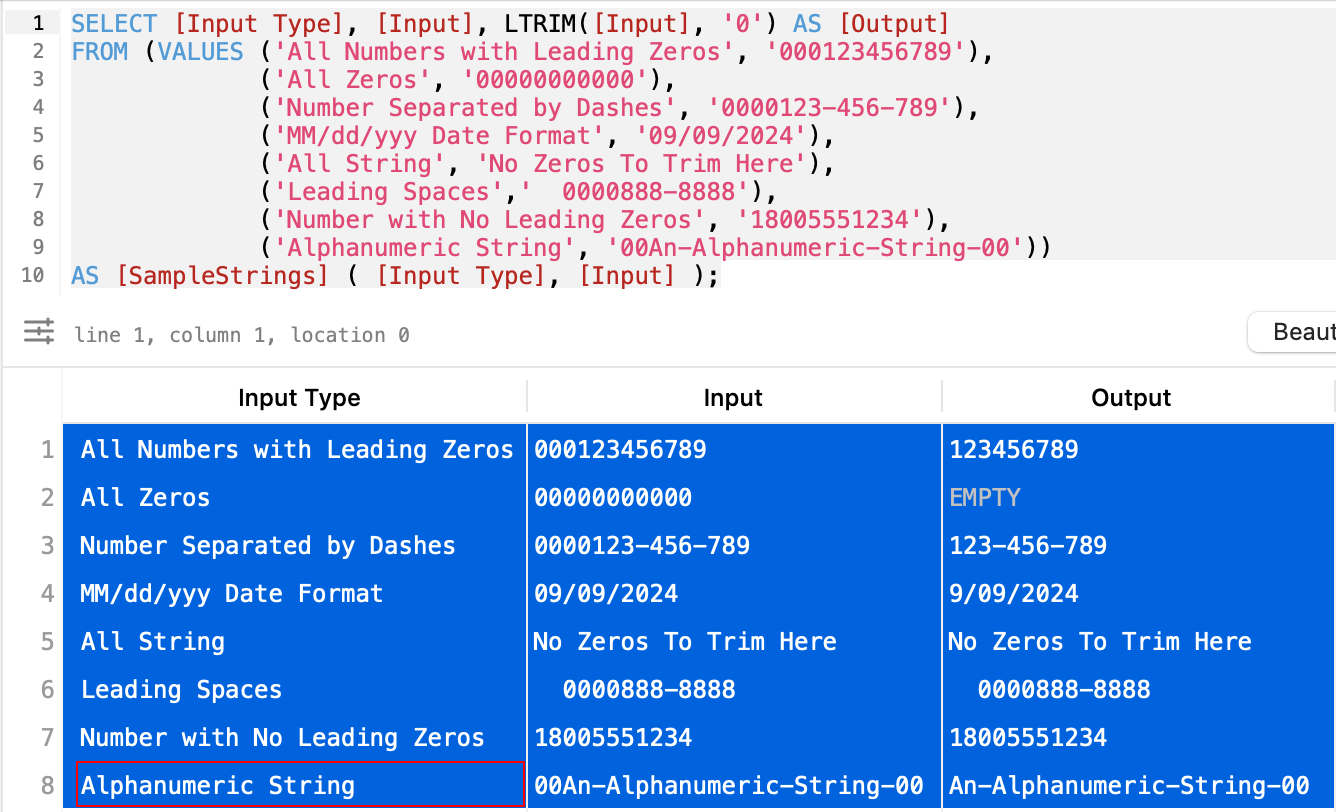
Figure 1: Trim Leading Zeros Using LTRIM String Function